> ## Documentation Index
> Fetch the complete documentation index at: https://docs.lacy.ai/llms.txt
> Use this file to discover all available pages before exploring further.
# SIP Integration
> Connect your existing phone system and numbers to lacy.ai
This guide will help you understand and set up SIP integration. If you need
clarification during setup, our support team is available to assist.
## What is SIP Integration?
SIP (Session Initiation Protocol) integration allows you to connect your existing phone system to lacy.ai. Think of it as building a bridge between your current phone setup and our AI platform. This means you can:
* Use your existing phone numbers with our AI assistants
* Keep your current phone system and provider
* Make and receive calls through your existing setup
* Maintain full control of your numbers
* Reduce carrier costs by using local VoIP providers with better rates
## How It Works
When you integrate your phone system with lacy.ai:
1. **Inbound Calls**: Calls to your numbers are routed through your phone system to our AI assistants
2. **Outbound Calls**: Our AI assistants can make calls appearing from your numbers
3. **Management**: You keep managing your numbers through your current provider
4. **Cost Efficiency**: Leverage your VoIP provider's competitive rates for call termination
## Integration Options
You can connect your phone system to lacy.ai in two ways:
### 1. PBX Extension Integration
This is like giving our AI platform an "extension" on your phone system:
* **What it is**: Connect a specific extension from your PBX/phone system
* **Perfect for**:
* Testing the integration
* Routing specific extensions to AI
* Simple setup with existing phone systems
* **You'll need**:
* Your extension number (e.g., 1000)
* Extension username and password
* Your PBX server address (e.g., pbx.yourcompany.com)
**Real-world example**:
```
Your office uses extensions 1001-1010 for staff
You set up extension 1011 for the AI assistant
Calls to 1011 go to the AI
The AI can make calls appearing as extension 1011
```
### 2. Direct Number Integration
This connects specific phone numbers to our platform:
* **What it is**: Route one or more of your phone numbers to our AI
* **Perfect for**:
* Dedicated AI phone lines
* Customer service numbers
* Sales or support lines
* **You'll need**:
* Your phone number (e.g., +1 555 0123)
* SIP credentials from your provider
* Provider's SIP server address
**Real-world example**:
```
You have a support number: +1 555 0123
You connect this number to our AI
All calls to +1 555 0123 are handled by the AI assistant
The AI makes outbound calls showing +1 555 0123
```
## Authentication & Call Flow
### Bidirectional Configuration
The SIP integration uses the same credentials for both inbound and outbound calls:
* **Inbound Calls** (VoIP → lacy.ai):
```
Your VoIP system authenticates using username/password
↓
Calls reach our platform
↓
AI assistant answers
```
* **Outbound Calls** (lacy.ai → VoIP):
```
AI initiates call
↓
Our platform authenticates to your VoIP using same username/password
↓
Call reaches destination
```
### Credential Synchronization
For the integration to work properly:
1. The credentials you set in lacy.ai dashboard must match exactly with your VoIP configuration
2. The same username/password combination is used for both directions
3. Any changes to credentials must be updated in both systems
If you change credentials in your VoIP system, remember to update them in
lacy.ai dashboard (and vice versa) to maintain the connection.
## Setting Up Your Integration
### Step 1: Gather Your Information
For PBX Extension:
```
Extension number: e.g., 1000
Server address: e.g., pbx.company.com
Username: Your extension username
Password: Your extension password
```
For Direct Number:
```
Phone number: e.g., +1 555 0123
SIP server: e.g., sip.provider.com
Username: Provided by your phone company
Password: Provided by your phone company
```
### Step 2: Configure in Dashboard
1. Go to your lacy.ai dashboard
2. Navigate to **Phone Numbers**
3. Click "Integrate SIP trunk"
4. Fill in your details based on your integration type
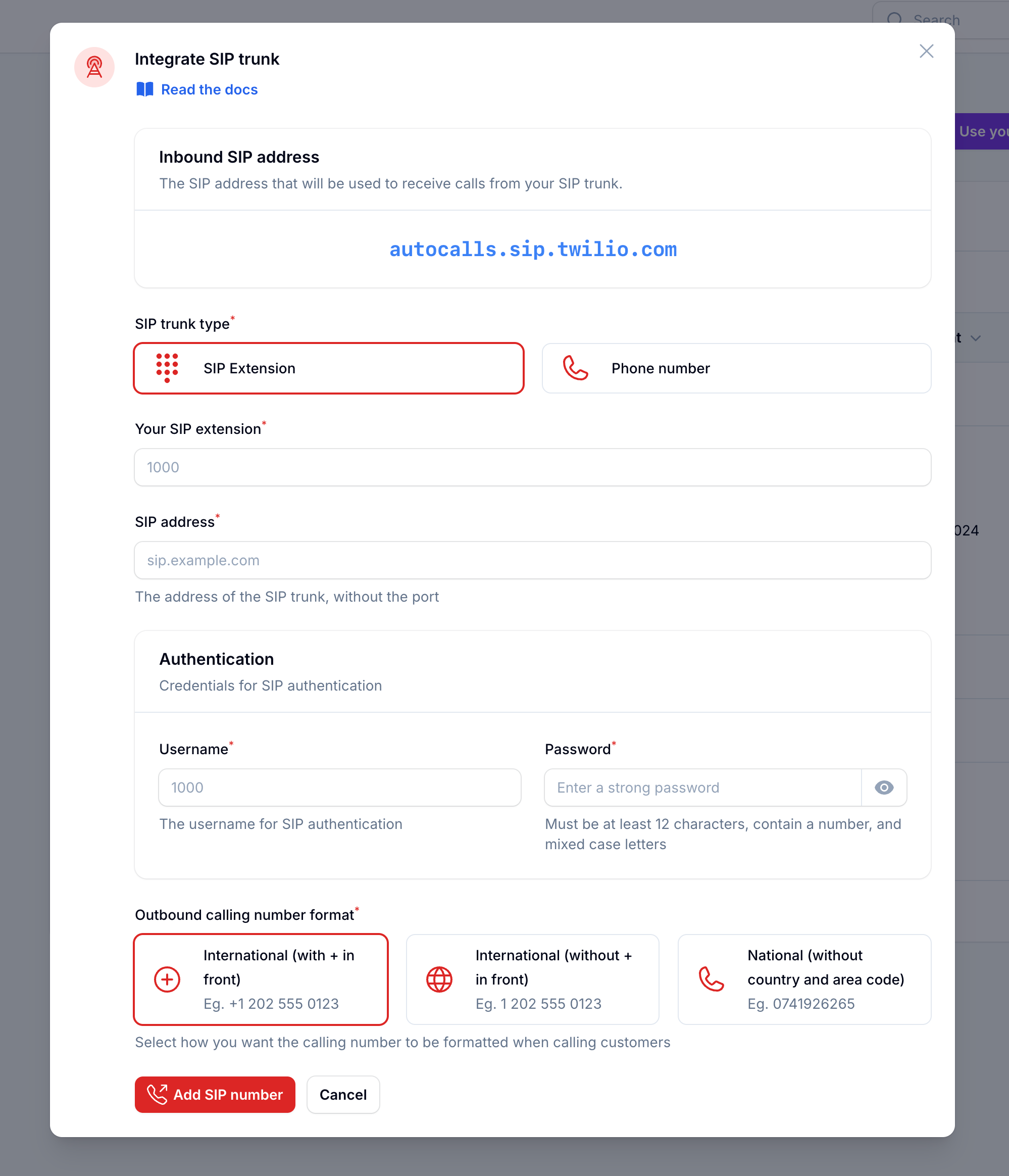 ### Step 3: Number Format Configuration
This tells our system how to format phone numbers when making calls. Choose based on your provider's requirements:
1. **International with +**
```
Format: +[country][number]
Example: +1 202 555 0123
SIP Request: sip:+12025550123@your.pbx.com
```
2. **International without +**
```
Format: [country][number]
Example: 1 202 555 0123
SIP Request: sip:12025550123@your.pbx.com
```
3. **National format**
```
Format: [local number]
Example: 0741926265
SIP Request: sip:0741926265@your.pbx.com
```
### Step 4: Verify Setup
After configuration:
1. Make a test call to your number/extension
2. Check that the AI assistant answers
3. Use the test call feature to verify outbound calling
## Security Requirements
Your SIP credentials need to be secure:
* **Username**: Your extension number or provider-supplied username
* **Password must have**:
* 12 or more characters
* Numbers
* Upper and lowercase letters
* Special characters recommended
## Common Questions
Yes! You can integrate multiple extensions or direct numbers with our platform.
{" "}
No, you maintain full control through your current provider. The integration
only establishes a connection between your system and our platform.
{" "}
Yes, you can set up routing rules in your phone system to decide which calls
go to the AI and which go to your regular phone system.
{" "}
You can update your integration settings anytime through the dashboard. All
configuration options remain accessible after initial setup.
By using your own VoIP provider, you can take advantage of their local rates
and existing agreements, which are often more competitive than standard carrier
rates. This is especially beneficial for international calls.
***
Need help setting up? Our support team specializes in helping customers
integrate their phone systems. We'll guide you through the entire process,
ensuring a smooth setup with your specific phone system configuration.
### Step 3: Number Format Configuration
This tells our system how to format phone numbers when making calls. Choose based on your provider's requirements:
1. **International with +**
```
Format: +[country][number]
Example: +1 202 555 0123
SIP Request: sip:+12025550123@your.pbx.com
```
2. **International without +**
```
Format: [country][number]
Example: 1 202 555 0123
SIP Request: sip:12025550123@your.pbx.com
```
3. **National format**
```
Format: [local number]
Example: 0741926265
SIP Request: sip:0741926265@your.pbx.com
```
### Step 4: Verify Setup
After configuration:
1. Make a test call to your number/extension
2. Check that the AI assistant answers
3. Use the test call feature to verify outbound calling
## Security Requirements
Your SIP credentials need to be secure:
* **Username**: Your extension number or provider-supplied username
* **Password must have**:
* 12 or more characters
* Numbers
* Upper and lowercase letters
* Special characters recommended
## Common Questions
Yes! You can integrate multiple extensions or direct numbers with our platform.
{" "}
No, you maintain full control through your current provider. The integration
only establishes a connection between your system and our platform.
{" "}
Yes, you can set up routing rules in your phone system to decide which calls
go to the AI and which go to your regular phone system.
{" "}
You can update your integration settings anytime through the dashboard. All
configuration options remain accessible after initial setup.
By using your own VoIP provider, you can take advantage of their local rates
and existing agreements, which are often more competitive than standard carrier
rates. This is especially beneficial for international calls.
***
Need help setting up? Our support team specializes in helping customers
integrate their phone systems. We'll guide you through the entire process,
ensuring a smooth setup with your specific phone system configuration.